
Up to three steps for each request
An owner sets the steps in Settings: one policy for leave and one for payroll. Each step has a name and the roles that can approve it.
A step can belong to the site, the legal employer or the whole organisation. A branch manager can approve leave for their own branch first, and HR can approve it next for the company. A request keeps the steps it started with, so a later policy change does not change open requests.
Rules that keep approvals honest
The system checks your approval rules whenever a decision is made.
- Nobody approves their own leave.
- The person who sent a request cannot approve it.
- One person acts on one step only, so two steps need two people.
- A rejection needs a reason.
- A person who created, calculated or adjusted a payroll run cannot approve it while separation of duties is on, which is the default.
- When your organisation requires two-step verification, a payroll approval asks for the code.
Reminders, escalation and delegation
Set how many hours each step can wait. When that time passes, the approvers get a reminder. After twice that time, the escalation roles you chose can act as well, and the request records the escalation.
An approver who goes on leave can delegate to a colleague for a set period. The delegate acts with the approver's own authority, and the record shows both names. A delegate cannot pass the delegation on.
One inbox in the web app
The Approvals page shows what waits for you, with the step, the due time and the person you act for. The menu shows a count, so nothing waits unseen. When a request is approved or rejected, the person who asked gets an in-app notification.
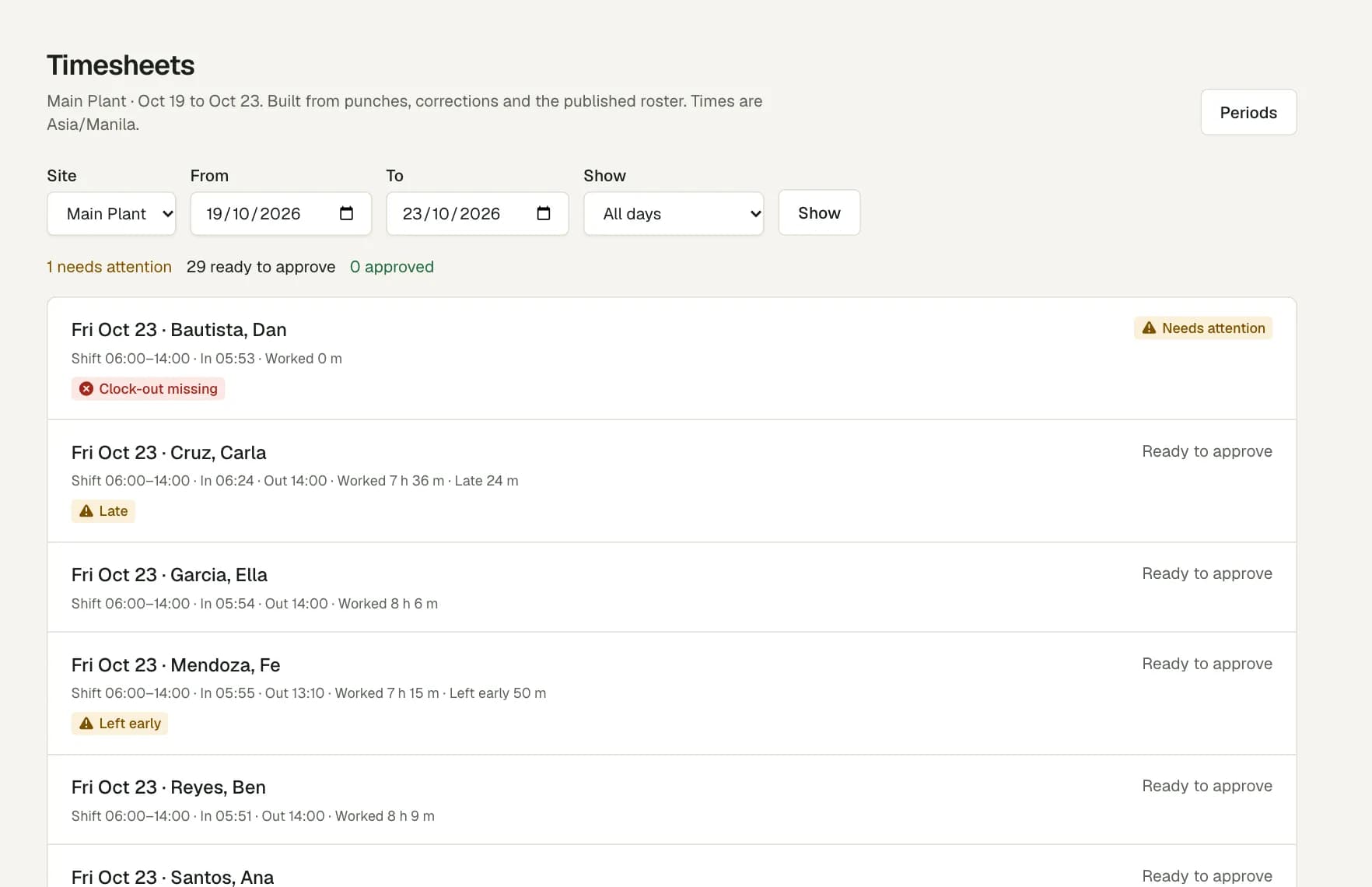
Other approvals stay with their own records. A manager approves each timesheet day and its overtime, an owner reopens a locked period with a reason, and a second person approves a bank file before anyone can download it.
Questions
What goes through an approval workflow?
Leave requests and payroll runs. Timesheet days, overtime and bank files have their own approval steps on their own pages.
Do approvers get an alert on their phone?
Not yet. Approvers see new requests on the Approvals page and in the in-app notifications. The web app also works in a phone browser.
What happens if nobody decides in time?
The approvers get one reminder when the step passes its time limit. After twice that time, the escalation roles can also act. The request keeps a record of the escalation.
What if we never set up a policy?
Leave then has one step: the site's scheduler or branch manager, HR or the owner. A payroll run goes to a payroll approver or the owner of that legal employer.